New Preset Panel in Lizzy

Presets were designed to make workflows reusable. The new preset panel improves how you browse, organize, and create them. With a more visual layout, clearer filtering, and shared organization structures, it becomes easier to manage and scale workflows across your team.
A redesigned way to browse, organize, and manage your workflows
Presets are at the core of how work gets done in Lizzy. They allow you to run reusable workflows, automate repetitive tasks, and standardize how legal work is performed. This update focuses on improving how you browse, organize, and create presets.
The preset panel has been redesigned with several key improvements:
— Redesigned preset cards with more structured information
— Multiple view modes (large cards, small cards, and list view)
— Improved filtering with tabs, labels, and sorting
— Ability to mark presets as favorites for quick access
Below is a breakdown of the main changes.
Redesigned preset cards
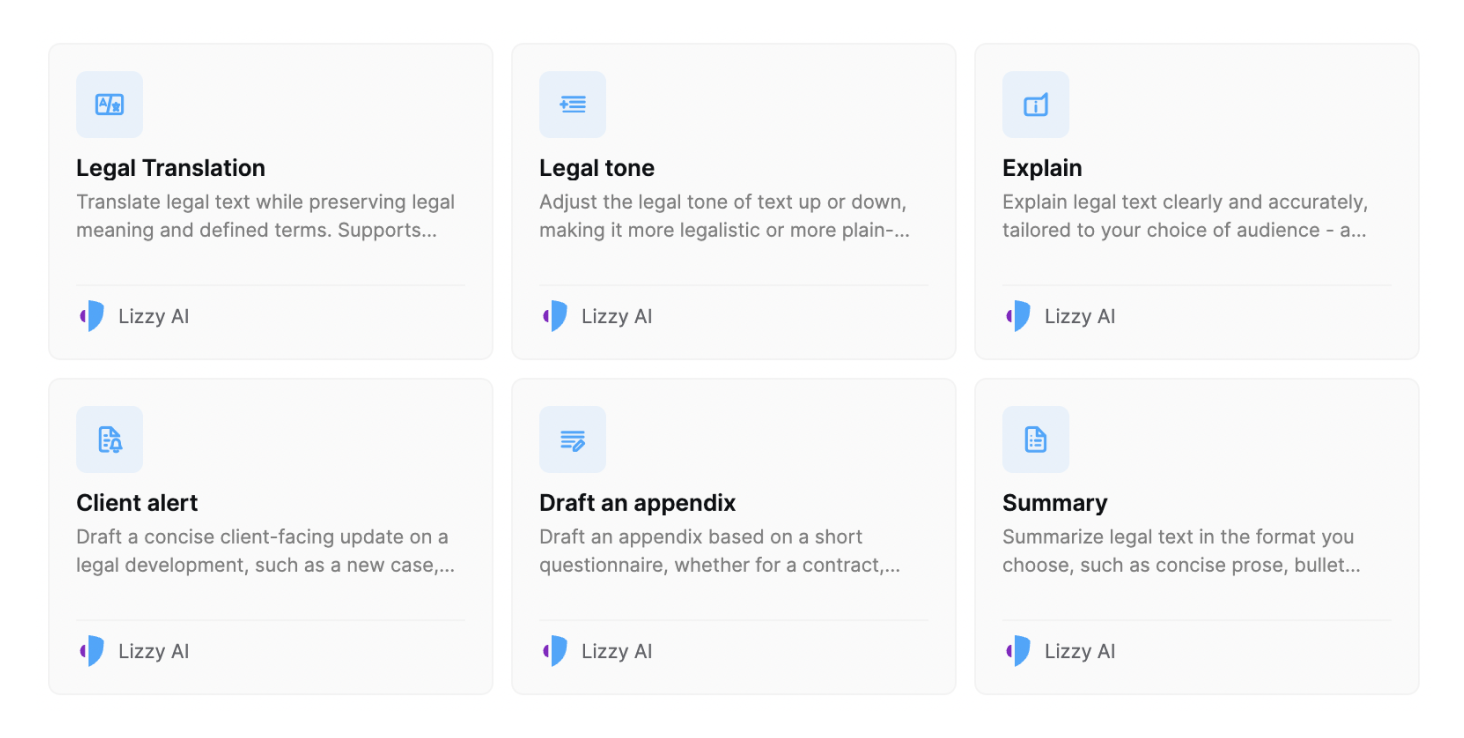
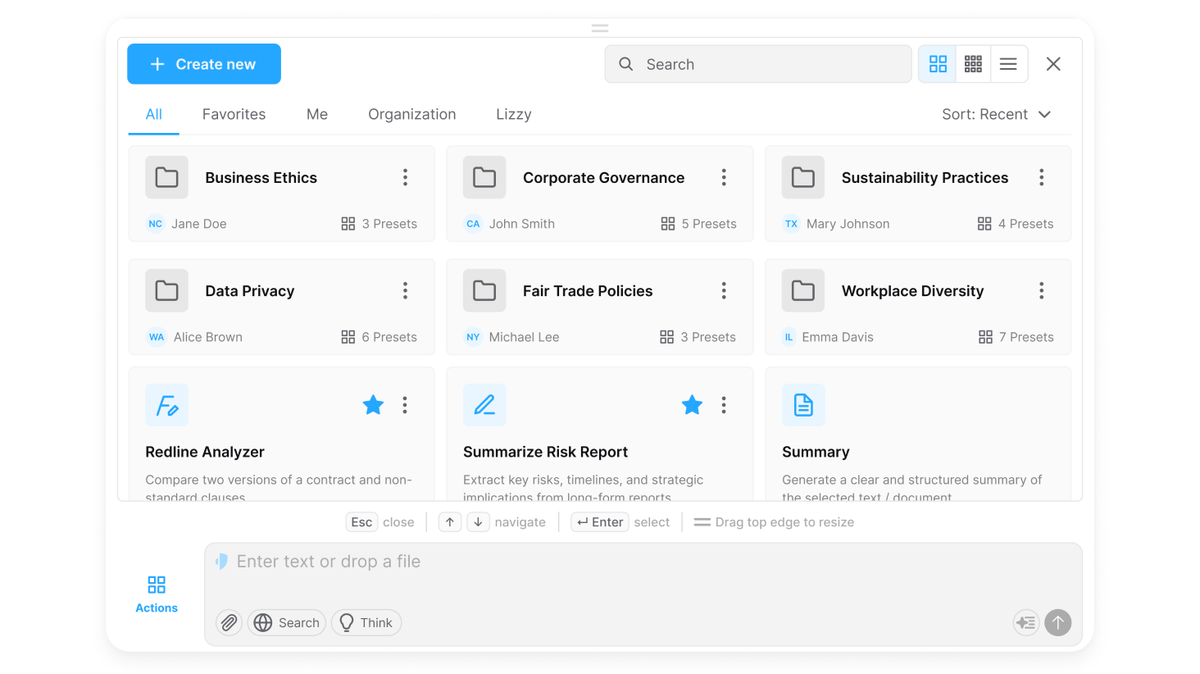
Preset cards have been redesigned to make them more informative and easier to scan. Each preset is now displayed as a structured card that includes:
— name and description
— author information
— number of attached files
— quick actions such as favorite and context menu
This makes it easier to navigate the library, understand the context of each preset, and make decisions directly from the list without opening it. The interface is adapted for the Word plugin — balancing information density and usability without creating visual overload.
View modes
The preset panel supports three view modes:
— Large cards (grid) — a more visual layout with richer content
— Small cards (grid) — a compact layout that preserves the previous density
— List view — a detailed, row-based view
In Word, only small cards and list view are available to keep the experience clear and easy to use.
Filtering and navigation
Finding the right preset is now more straightforward with clearer structure and navigation. Presets can be filtered using tabs such as All, Favorites, Me, Organization, and Lizzy, allowing you to quickly switch between different sources and types of workflows.
In addition, you can:
— mark presets as favorites for quick access
— sort presets (for example by recent or name)
This makes it easier to navigate large preset libraries and focus on what matters.
Folders and organization
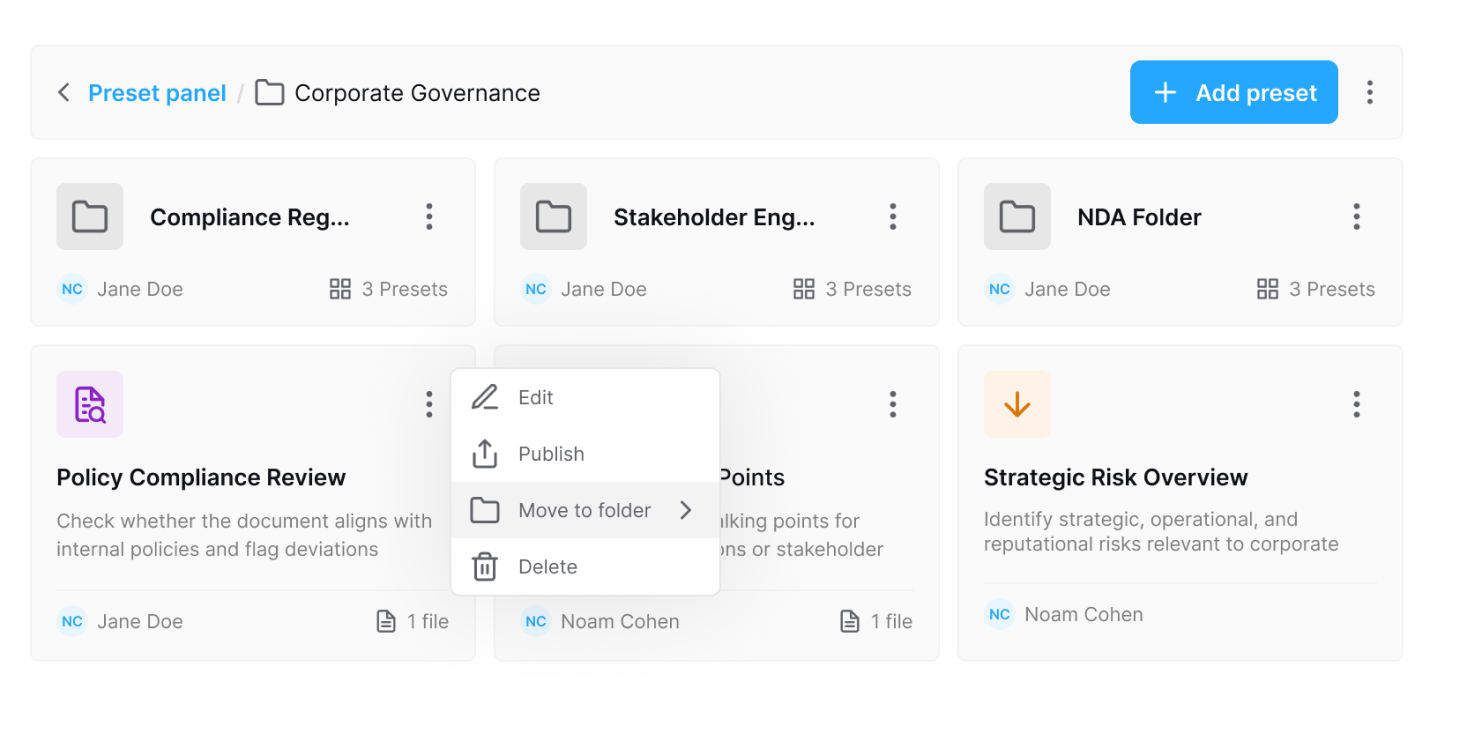
Presets can now be organized using folders, making it easier to structure and manage your workflows. You can group related presets together to keep your workspace organized and quickly access what you need.
In addition, organization folders allow teams to create shared collections of presets that are available across the entire organization. This helps maintain a consistent structure and makes it easier to scale preset usage across teams.
Creation flow
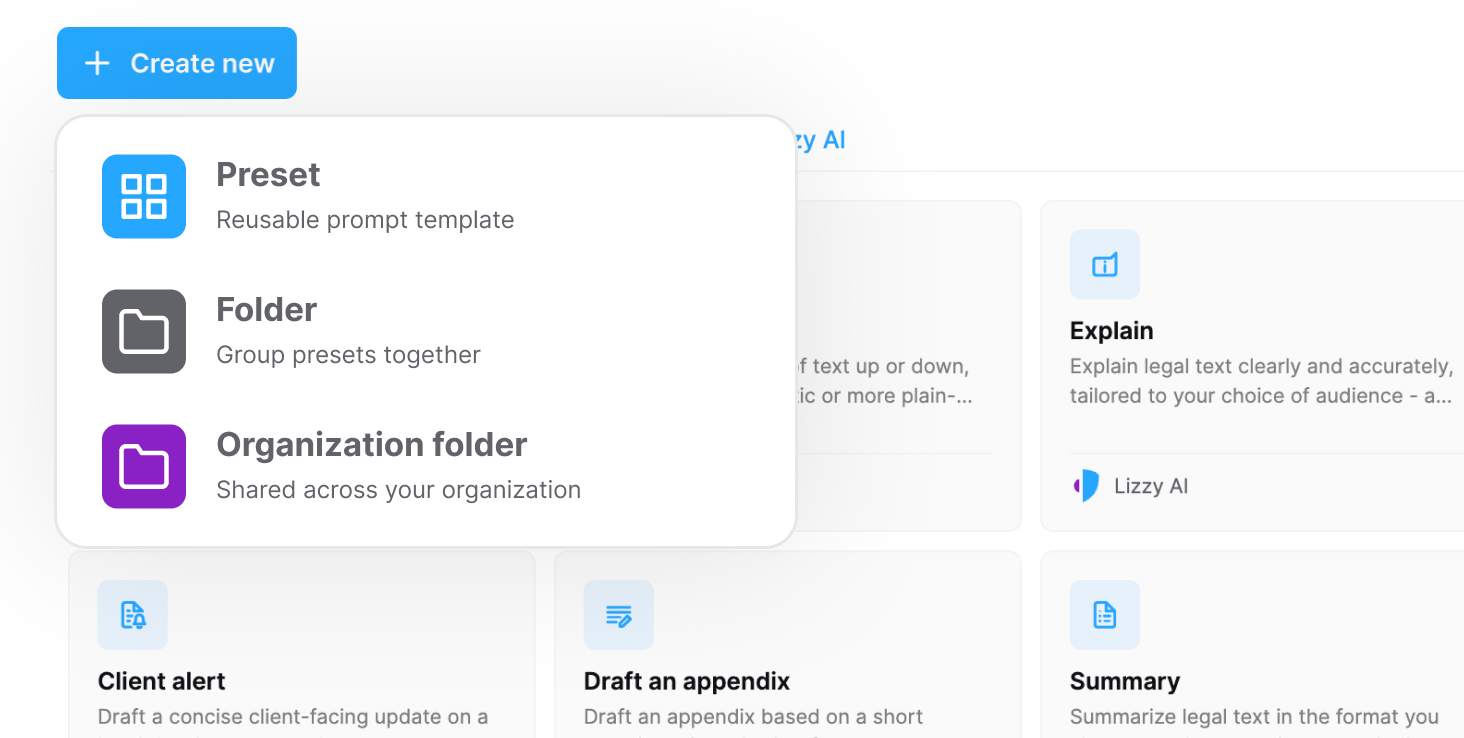
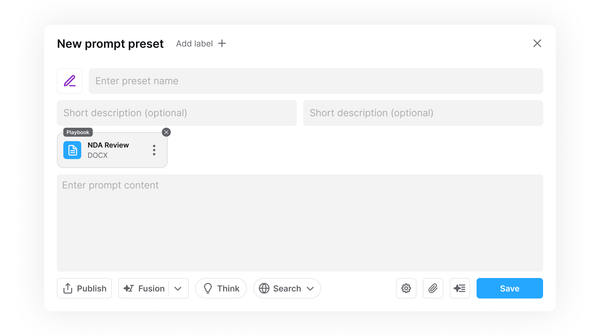
The Create New action has been expanded — you can now create not only presets, but also folders. The Create New button now opens a dropdown where you can choose:
— create a preset
— create a folder
— create an organization folder
This provides a single, clear entry point for creating new items.
Organization controls (admins)
For organization-wide content, admins can manage how presets are shared and structured.
Organization folders introduce a shared layer in the preset panel, allowing teams to group and organize presets at the organization level — not just individually. These folders are visible to all members of the organization and help create a consistent structure across teams.
Presets can be submitted for publishing and enter a pending review state. Admins can review, approve, or reject submissions before they become available in the organization library. This ensures that shared presets follow internal standards, while still allowing teams to contribute and organize useful workflows at scale.
A cleaner, more focused experience
The redesign reduces visual noise and puts the focus on what matters most — getting to the right preset, fast. The interface is now more consistent and predictable: cards follow a clear structure, key information is easier to scan, and actions are placed where users expect them.
As a result, working with presets feels simpler and faster — fewer unnecessary steps, fewer distractions, and more control over the workflow.
Built to scale with your library
As the number of presets grows, it becomes critical not just to have them, but to navigate them effectively. The new preset panel is designed with scale in mind — both for individual users and for teams.
It helps create a clear structure, makes it easier to find the right workflows, and encourages reuse instead of starting from scratch each time.
A key part of this is the separation between personal and organization presets, allowing users to stay flexible while teams maintain consistent standards.
The result is a preset panel that acts not just as a library, but as a system for scaling workflows — from individual use to team-wide processes.